
Meguri User Guide
Everything you need to browse, search, and rediscover your local videos and photos.
Contents
- Getting started
- Browsing your library
- Browsing by folder
- Playing videos and viewing photos
- Listening to audio
- Search and filters
- Tags, ratings, and favorites
- Editing several files at once
- Timeline view
- Graph view
- Collections
- Discovery
- Playlist playback
- Scene bookmarks and history
- The pet
- Workspaces
- The tray icon and quitting
- Themes, language, and zoom
- Where your data lives
- FAQ
Getting started
Install Meguri from the download page, then launch it. On first launch the library is empty, and a screen prompts you to add a folder.
- Click the + button in the left sidebar (or the prompt on the empty screen) and pick a folder that contains your videos or photos.
- Meguri scans the folder recursively and starts generating thumbnails in the background. Progress is shown while it works — you can start browsing right away as items appear.
- That's it. The folder is remembered, and every later launch re-checks it automatically for new, changed, moved, or deleted files.
Browsing your library
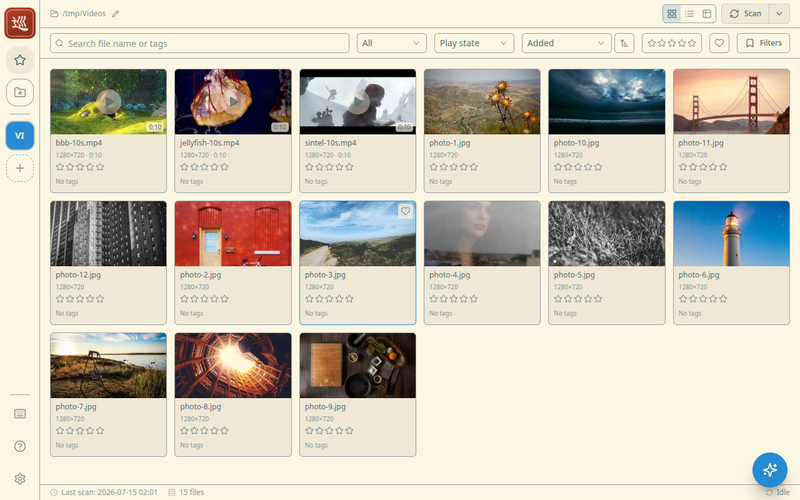
The main screen shows your library as an endless, scrollable wall of thumbnails. Four layouts are available from the header, so you can switch between visual browsing, a detail-oriented list, a walk through time, and a map of how your files relate:
- Grid — large thumbnails, best for visual scanning.
- List — one row per file with its folder, tags, resolution, duration and size lined up in columns. The thumbnail size is set in Settings → List thumbnail size.
- Timeline — the library in date order, day by day; see Timeline view.
- Graph — files and their tags drawn as a network; see Graph view.
The grid and the list can also be shown by folder instead of as one flat library.
Scrolling is infinite — items load as you go, even in very large libraries. Use Ctrl + mouse wheel (or Ctrl + +/-) to make everything larger or smaller at any time.
Browsing by folder
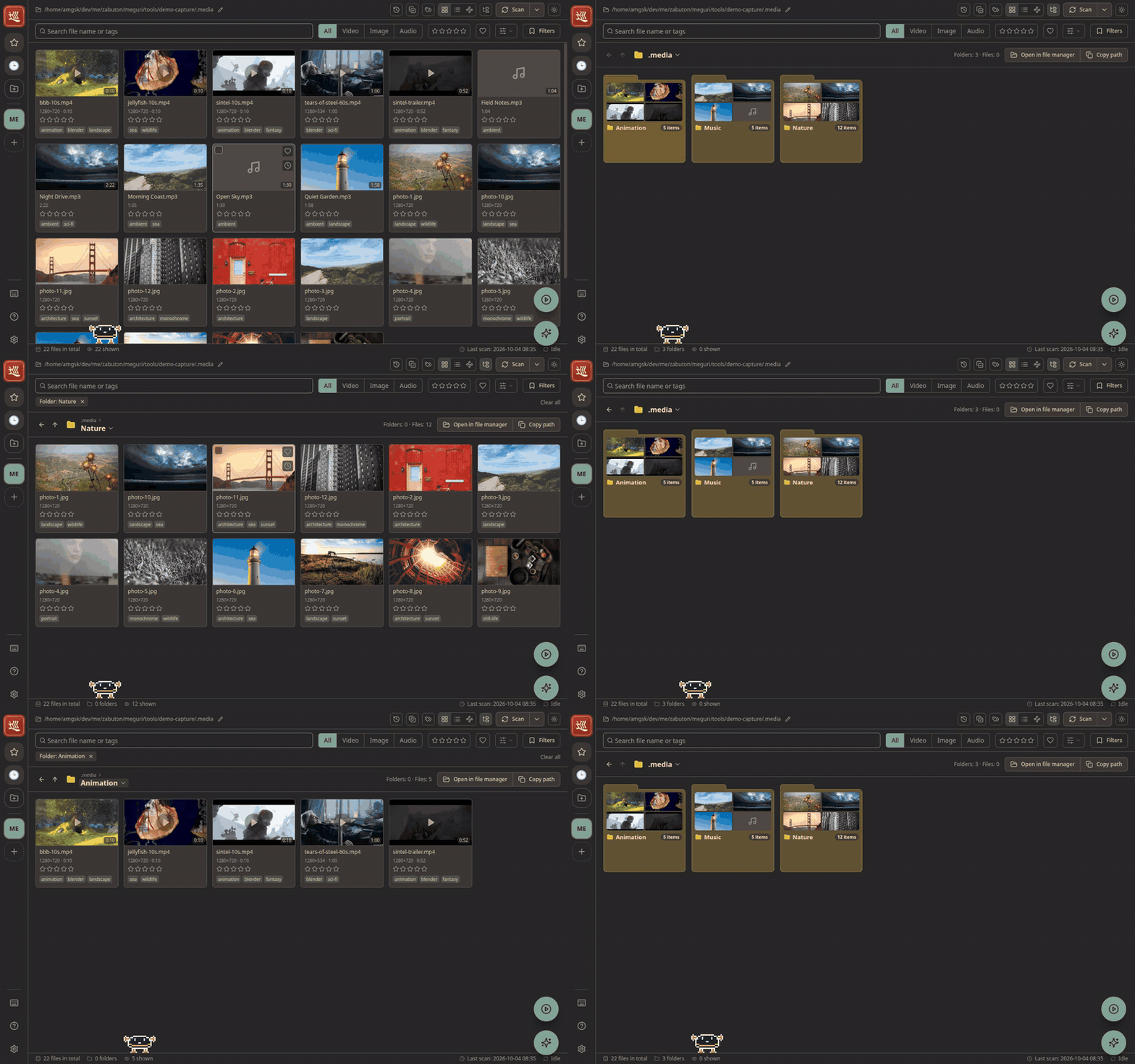
The Show by folder button in the header, next to the layout switch, turns the grid or the list into your folder tree. Each folder is a card with a preview of what is inside and a count of its items; click one to step into it. It is available while a single workspace is open (not in All, a collection, or the graph).
- The breadcrumb above the list shows where you are. Its arrows go back to the previous folder (Alt+← or Backspace) and up one level (Alt+↑), and the menu on the current folder's name jumps straight to one of its subfolders.
- Open in file manager and Copy path act on the folder you are in.
- Search and filters apply inside the current folder. Below the top level, the folder shows up as a badge among the search conditions.
- The play button plays the whole folder, subfolders included — see Playlist playback.
Playing videos and viewing photos
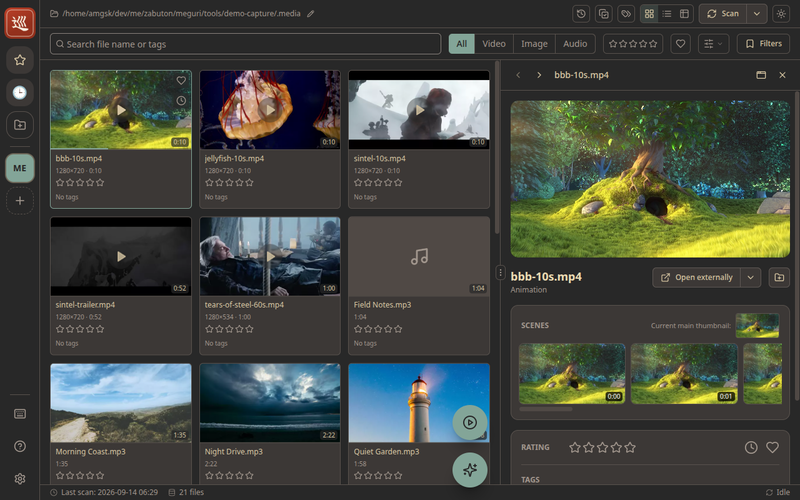
Click any thumbnail to open the detail view. It opens over the library, so closing it (or pressing Esc) drops you right back where you were.
Prefer to keep the library in reach? The button in the detail view's header opens it as a side peek instead: a sheet docked to the right edge, with the grid, search, and player bar still usable beside it. Drag the sheet's left edge (or focus the grip and use the arrow keys) to change its width. Meguri remembers whether you last used the modal or the side peek, along with the size of each, and opens the next file the same way; the peek's header has a button back to the modal.
- Videos play immediately with full seeking. Hovering the seek bar shows frame previews so you can find a scene before jumping to it. Common formats (mp4, webm, mkv, avi, and more) play in-app.
- A video or track you stopped partway resumes where you left off, and its thumbnail carries a progress bar until you finish it. To always start from the beginning, turn off Settings → Resume where you left off.
- Photos are shown full size. A Copy image button puts the picture on your clipboard, ready to paste into a chat or document.
- If a file uses a codec the built-in player can't handle, use Open externally to hand it to your system's default player.
The detail view is also where you edit a file's tags and rating, mark it as a favorite, and add scene bookmarks.
Listening to audio
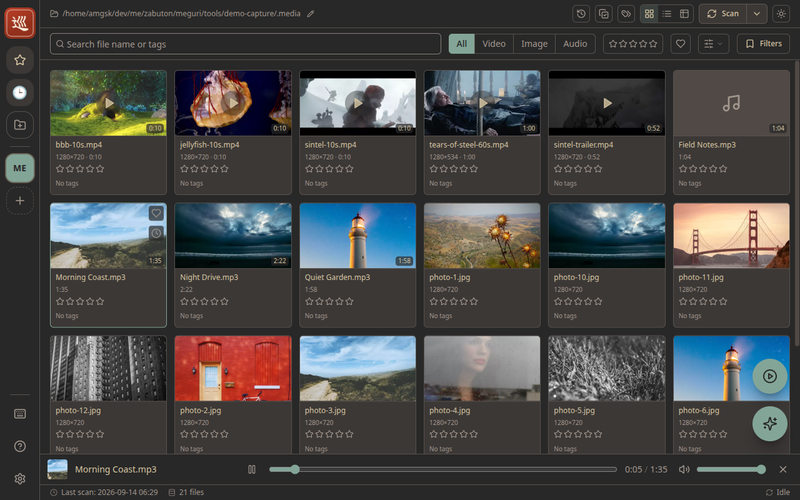
Music and other audio files (mp3, m4a, flac, ogg, opus, wav) sit in the library next to your videos and photos, with any embedded cover art as their thumbnail. Clicking one starts it in a player bar along the bottom of the window rather than opening it: the bar shows the cover, the title, a seek bar and the volume, and it keeps playing while you scroll, search, or open other files. Close it with the × at its right end.
To edit a track's tags and rating, open its detail view from the name on its card, or from the title in the player bar. The detail view shows the cover art large with the same transport underneath, and closing it hands playback straight back to the bar without a gap.
Starting a video pauses the track, and the other way round, so the two never play over each other.
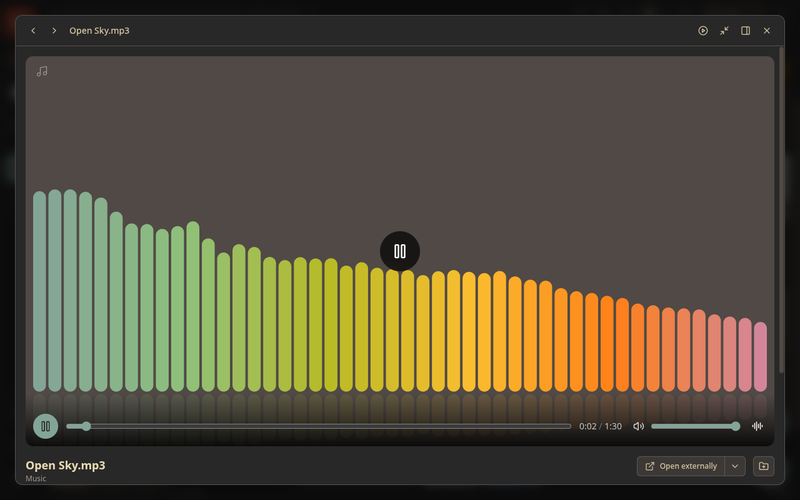
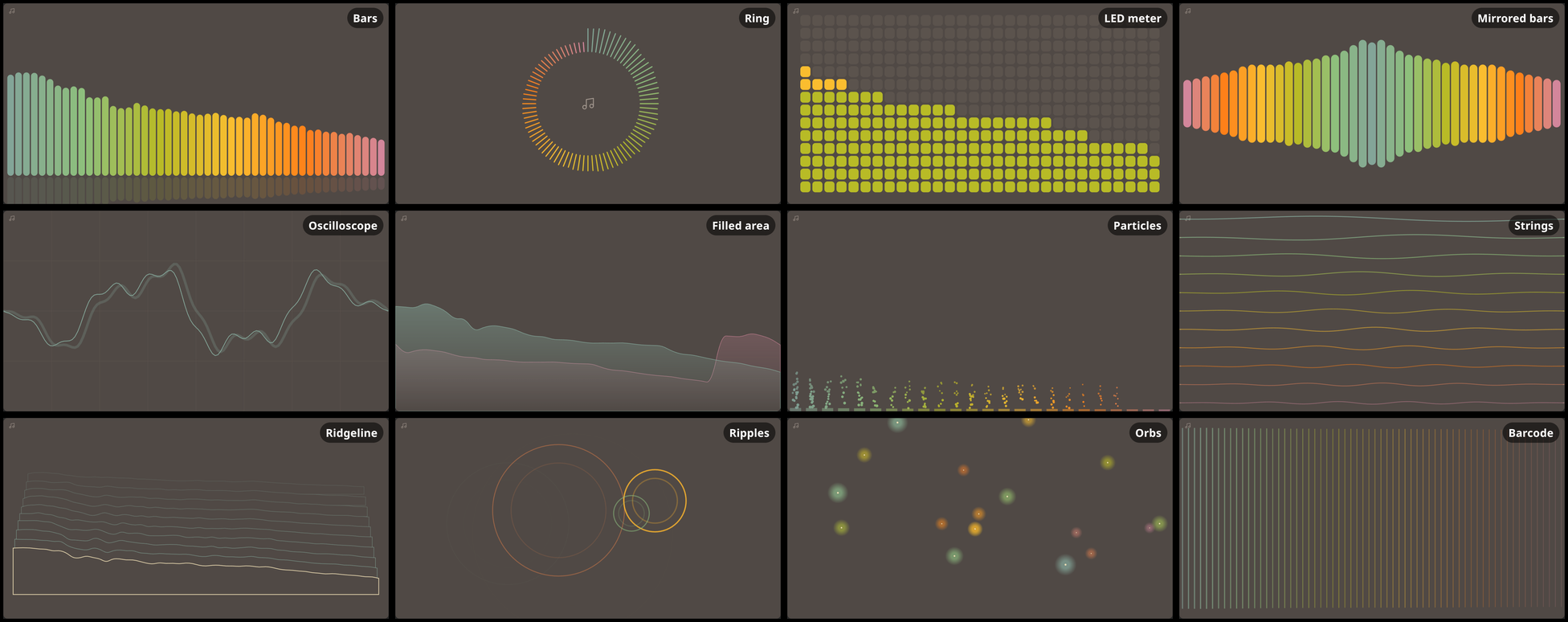
While a track plays, the detail view, the side peek and the playlist player show a live spectrum of it: over the cover art, or filling the stage when the track has none. There are twelve patterns to choose from — bars, a ring, an LED meter, mirrored bars, an oscilloscope, a filled area, particles, strings, a ridgeline, ripples, orbs and a barcode — picked in Settings under Spectrum pattern, or stepped through with V (and Shift+V for the one before) while audio is on screen. The Audio spectrum switch in Settings, and the button on the detail view, turn the display off altogether; it also stays off while your OS is set to reduce motion.
Search and filters
The search bar at the top filters your whole library. You can combine:
- Text search — matches file names, paths, and tags (full-text search, so partial words work).
- Kind — only videos, only images, or only audio.
- Tags — one or more tags.
- Rating — minimum ★ rating.
- Favorites — only files you've marked.
- Capture date/time — when the media was recorded.
Every active condition appears as a badge under the search bar. Click a badge's × to remove just that condition. Sort order (name, date, size, rating, …) is chosen next to the search bar.
Tags, ratings, and favorites
- Tags — add free-form tags in the detail view; the input autocompletes from tags you've already used.
- Ratings — rate files from ★ to ★★★★★.
- Favorites — a one-click heart for the files you come back to.
All of these stick to the file's content, not its location: if you later rename a file or move it to another folder inside the same workspace, your tags, rating, favorite mark, and history follow it automatically after the next scan.
Editing several files at once
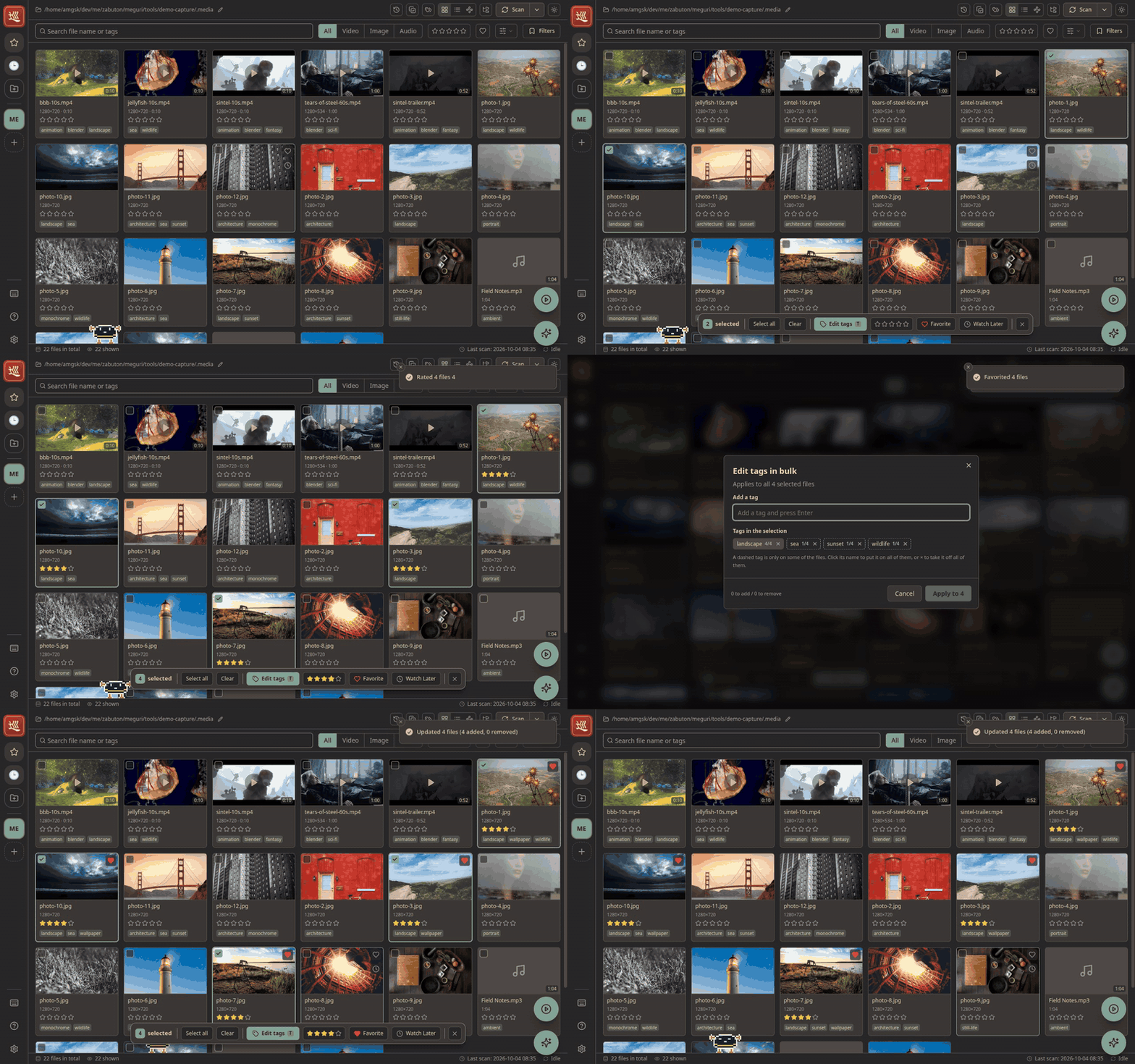
Hover a file in the grid or the list and tick the checkbox in its corner to start a selection. A bar appears along the bottom with the number of files selected and everything you can do to them together:
- Select all (Ctrl+A) takes everything loaded in the list so far; Clear empties the selection. Browsing by folder, a folder card can be ticked too, which selects every file inside it.
- Edit tags (T) opens a dialog that adds tags to every selected file and lists the tags already in the selection. A tag with a dashed outline is on only some of the files: click its name to put it on all of them, or its × to take it off all of them.
- The stars, Favorite and Watch Later apply to the whole selection in one click.
One edit covers up to 5,000 files. The × at the end of the bar leaves selection mode.
Timeline view
The third layout in the header lays your library out by date, newest first, in a section per day with the date and its number of files above it. The heading stays put at the top while you scroll through that day, so you always know when you are. Thumbnails look and work as they do in the grid: open, favorite, rate, select and edit files the same way, and step through them in the detail view across the days. It follows the same search and filters as the other layouts.
- The rail down the right edge is the whole library at the height of the window, as a column of dots — a larger dot for each month, a smaller one for each day — with the years written beside it. A grip shows where you are. Drag the grip — or press anywhere on the rail — to move through the library, and a chip names the day as you go; hovering over the rail names the day under the pointer too. From the keyboard, Tab to the rail and the arrow keys move a month at a time.
- Created / Added / Captured in the heading chooses the date the timeline runs along: when the file was created on disk (the default), when Meguri first indexed it, or when a photo or video was taken (from its metadata — many files carry none). Files with no date of that kind are gathered in a No date section at the end, which the rail reaches as well.
- The sort order in the filters does not apply here — the timeline is always by date — and it is left as it was for the other layouts. The timeline has no by-folder form; folders are for the grid and the list.
Graph view
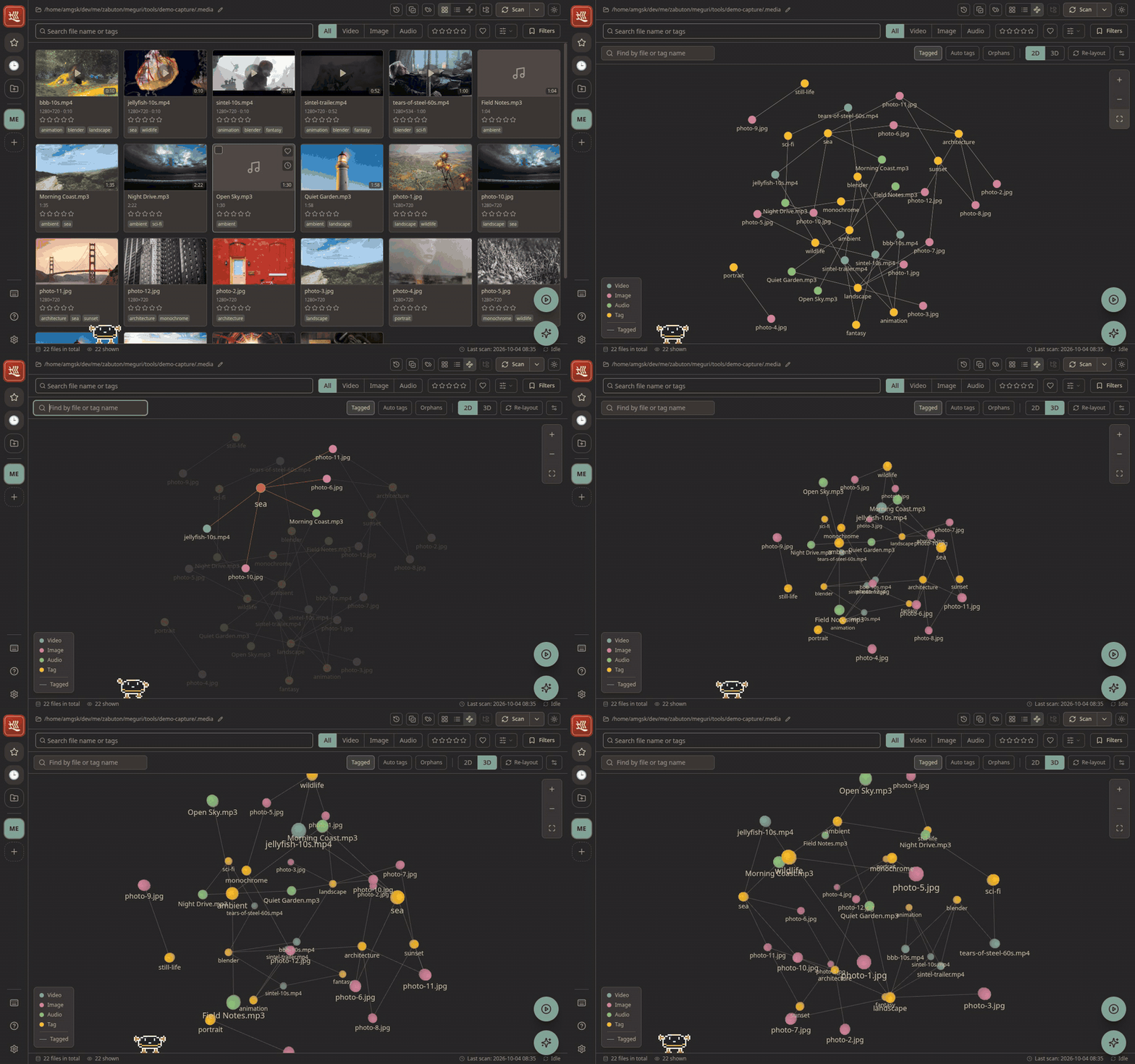
The fourth layout in the header draws your library as a network: files and tags are dots, and a line joins a file to each of its tags. Files that share tags gather around them, so clusters and odd ones out are easy to spot. It follows the same search and filters as the list, and it needs tags to have anything to connect. Up to 5,000 files are drawn at once; narrow the list down to see the rest.
- Hover a dot to light up what it is linked to (a file also shows its thumbnail beside the pointer), and drag it to pull the graph around. Clicking a file opens its detail view; clicking a tag filters the library by that tag.
- The search box above the graph (G) finds a file or tag by name: Enter highlights the match and Shift+Enter opens it. Click the background to clear the highlight. F fits the whole graph on screen.
- 2D / 3D switches between a flat map and one you can orbit by dragging the background.
- Auto tags and Orphans show or hide automatically generated tags and files with no links. Re-layout arranges the graph afresh.
- The settings button opens a panel for the look and the physics: size the dots by their number of links or by how often a file was played, set when labels fade in, and tune the forces that push and pull the graph.
Collections
Meguri has two ways to group files, for two different jobs:
| Collections | Smart collections | |
|---|---|---|
| What they are | Hand-picked sets of files, like playlists or albums. Can mix files from different workspaces, and each can have its own emoji icon. | Saved searches. You name a set of search conditions and re-run it with one click. |
| How to build one | Create a collection in the sidebar, then add files to it from the detail view or context menu. | Set up a search you like, then save it from the search area. |
| What's inside | Exactly the files you added, in the order you arrange them. | Whatever currently matches the conditions — new files that match show up automatically. |
One smart collection can be marked as the default with the star beside it in the saved-search menu. It is then the filter Meguri starts with on launch, and the one Clear all returns to.
Discovery
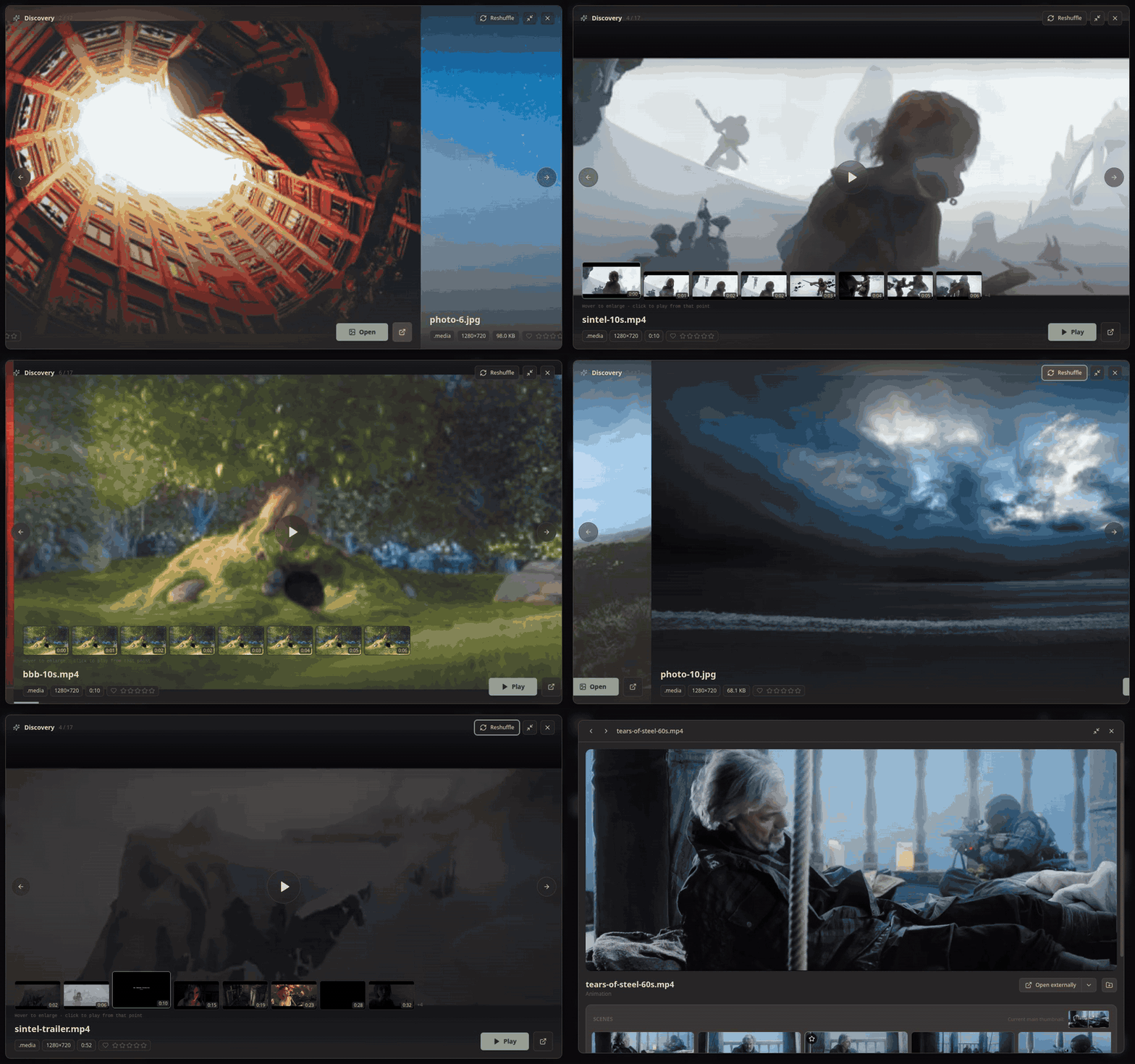
The bigger a library grows, the more of it sinks out of sight. Discovery deals you a random hand from your library and presents each pick full-screen, one at a time — the video plays large in the middle, with a rail of scene previews along the bottom. Hover a scene to enlarge it, click it to jump straight to that moment, or scrub the main video by hovering it. One click reshuffles the deck. Great for rediscovering things you forgot you had.
Playlist playback
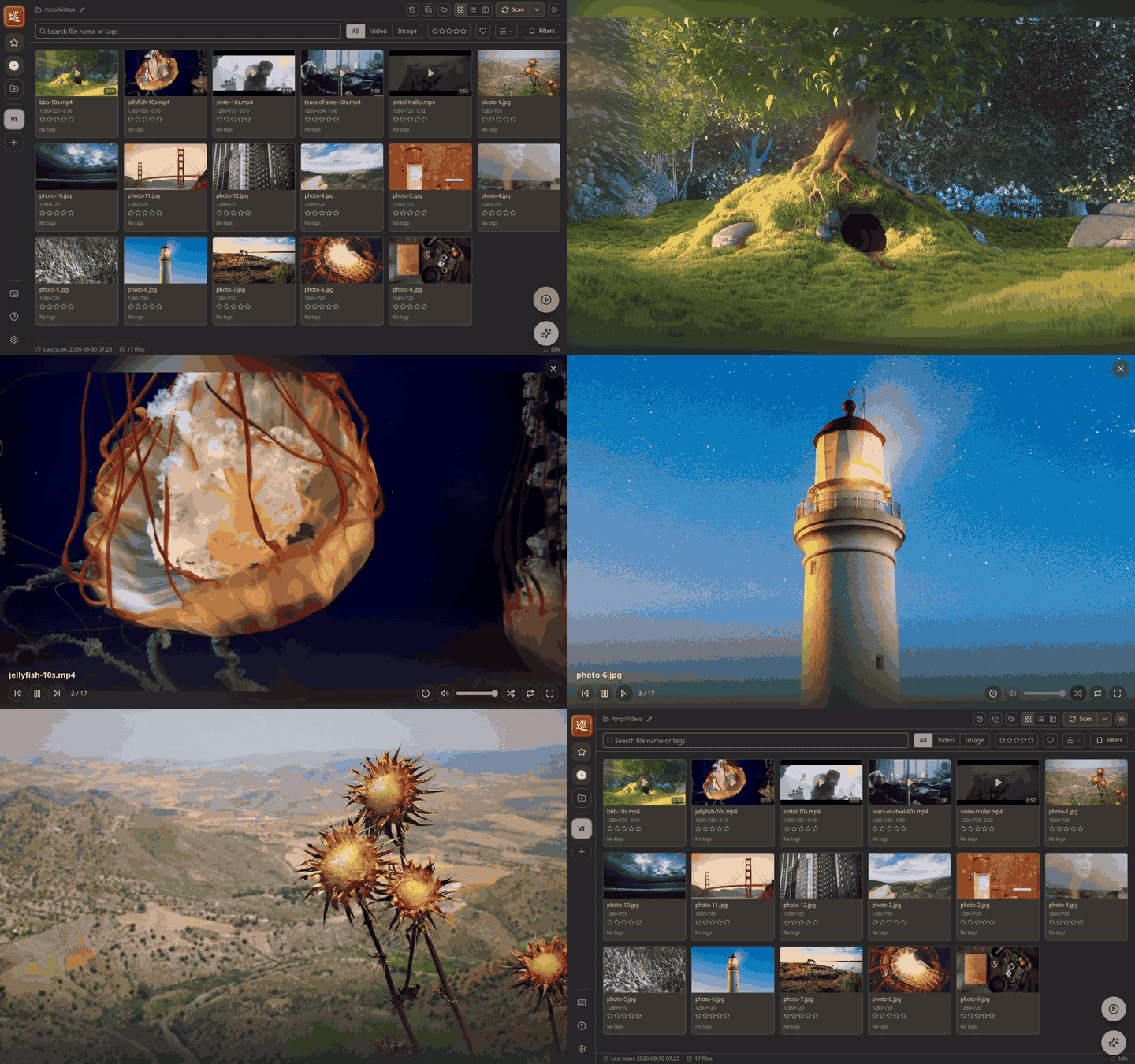
Any list you are looking at can play itself. Press the play button in the bottom-right corner (or open a collection and start it from there) and a full-screen player takes the list exactly as it is on screen — a collection, Watch Later, a workspace listing, or a search result, in whatever sort order you chose — and runs it without further input. Browsing by folder, it plays the whole folder instead of only the files shown in it: every subfolder included, by name unless you chose a sort.
- Videos play to the end, then the player moves on by itself.
- Photos stay on screen for a few seconds, slowly panning and zooming so a still image never looks frozen, then hand over to the next item.
- Shuffle plays the rest of the pass in a random order without repeating an item, and leaves the collection's saved order untouched. Repeat starts the list over when it ends.
- Manual order — switch a collection's sort to Manual order and drag items into the sequence you want. That order is saved with the collection, so it is what plays next time too.
- Controls fade away while you watch and come back when you move the mouse: play/pause, previous/next, volume, and full screen.
Keyboard: Space play/pause, N next, P previous, S shuffle, F full screen, I to step out to the current file's detail view (coming back resumes where you left off), V / Shift+V to step through the spectrum patterns on an audio track, and Esc to leave the player and return to the list you started from.
Scene bookmarks and history
- Scene bookmarks — while watching a video, save the current position as a named bookmark. Later, jump straight back to that scene from the detail view.
- Playback history — Meguri remembers what you've played and when, so recently and frequently watched items are easy to find again. Like tags, history survives file moves and renames.
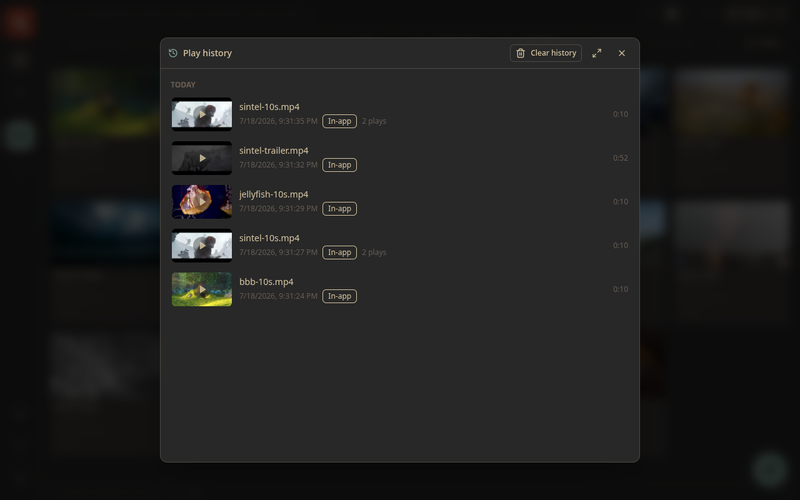
- The History view — open it from the play-history icon in the header to see a timeline of everything you've played, grouped by day (Today, Yesterday, …), with a play count for each file and whether it played in-app or in an external player. Click an entry to open the file again; Clear history wipes the timeline if you want a fresh start.
The pet
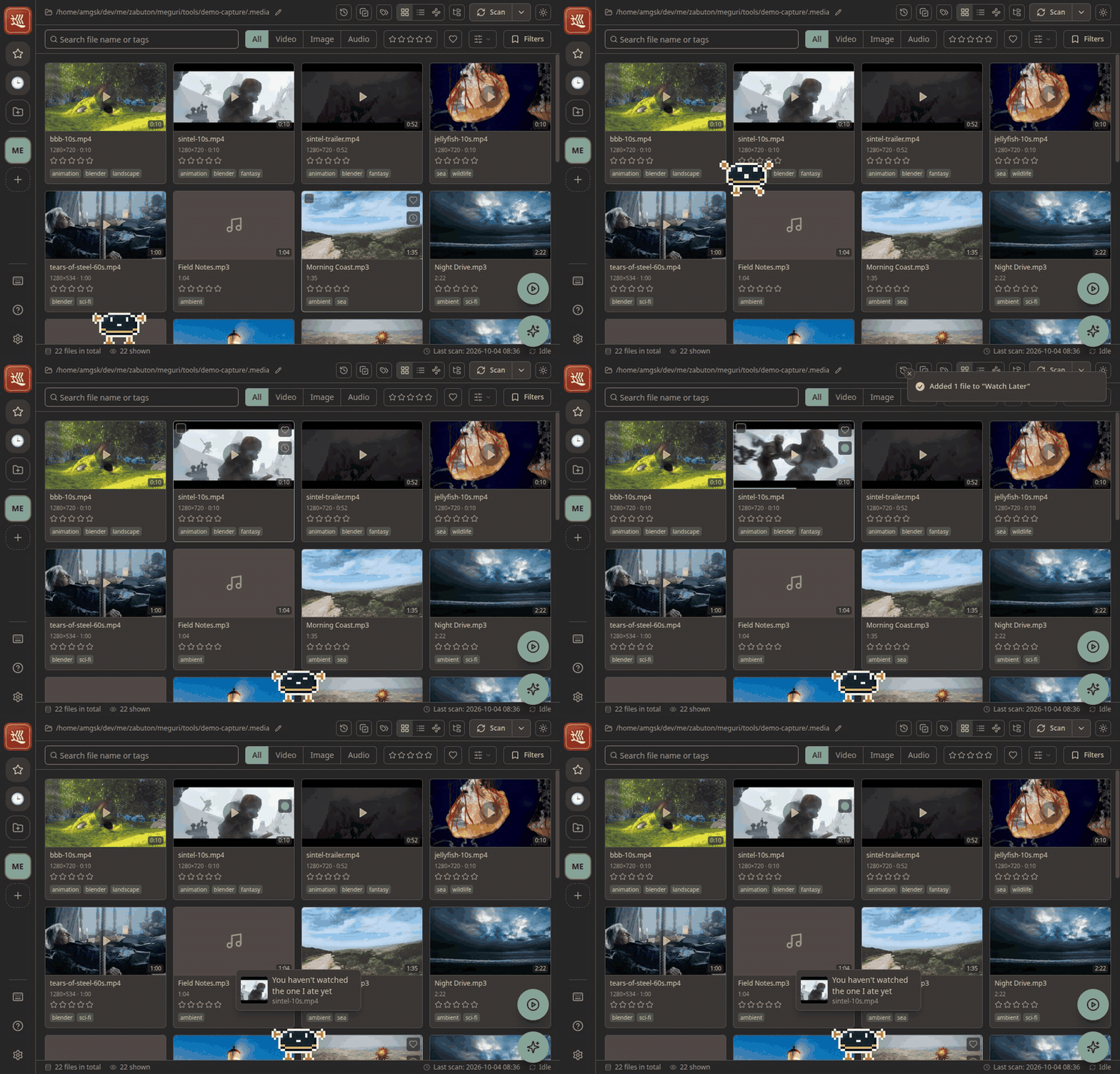
A small pixel-art zabuton (a floor cushion) walks along the bottom of the window. It is there for company, and it doubles as a shortcut:
- Drop a file on it and it eats it — the file is queued in Watch Later.
- Double-click it to open Discovery.
- Right-click it for more: play the current list, play Watch Later, or Bring me something, which has it fetch a file worth another look — one you queued, stopped partway through, liked, or have not played yet.
- You can pick it up and drop it anywhere; it falls back to the floor.
Put away in its menu hides it. Bring it back, or change its size, under Settings → General.
Workspaces
Each folder you add is a workspace with its own independent library — its own database, thumbnails, and scan schedule. The icon rail on the far left (Slack-style) lets you add, switch between, and remove workspaces.
- Dragging a folder from your file manager onto the window adds it as a workspace too; Meguri asks before it starts scanning.
- Removing a workspace removes it from Meguri only — the folder and your media files on disk are untouched.
- The special All workspace searches across every registered workspace at once — handy when you don't remember which library something is in.
- Re-scan the current workspace any time with the Scan button in the header. Scans are incremental: only new or changed files are processed, and moved or renamed files are recognized by content so their metadata is preserved.
The tray icon and quitting
Meguri lives in your system tray. Closing the window hides it to the tray instead of quitting — the app keeps running so it can reopen instantly. Click the tray icon to bring the window back.
To exit completely, choose Quit from the tray icon's menu (on macOS, Cmd+Q also works).
Themes, language, and zoom
- Themes — pick from base16 themes (gruvbox, solarized, nord, catppuccin, tokyo night, and more) in Settings. The entire UI follows the theme, in light and dark variants.
- Language — the UI is available in English, 日本語, Español, Français, 한국어, and 简体中文. Switch in Settings.
- Zoom — Ctrl + mouse wheel or Ctrl + +/- to scale the UI; Ctrl + 0 resets.
Where your data lives
Everything Meguri creates is kept in one place, separate from your media
(locations shown for Linux; on Windows it's under %APPDATA%,
on macOS under ~/Library/Application Support):
~/.config/Meguri/config.json— your registered workspaces and settings.~/.config/Meguri/roots/<id>/db.sqlite— the library database for one workspace (tags, ratings, history, metadata).~/.config/Meguri/roots/<id>/thumbs/— generated thumbnails.
Privacy: Meguri never connects to the internet. There is no telemetry, no analytics, and no account. All features work fully offline; the only network activity is a local server on your own machine that streams your files to the app window.
FAQ
A video won't play — what do I do?
Most formats play in-app, but a few codecs aren't supported by the built-in player. Use Open externally in the detail view to play the file with your system's default player.
I added files to my folder but they don't show up.
Click Scan in the header to re-scan the workspace. New files are also picked up automatically the next time the app starts.
I moved/renamed files — did I lose my tags?
No. Meguri identifies files by their content, so tags, ratings, favorites, and history follow a file across renames and moves within the same workspace. Just run a scan after reorganizing.
Does Meguri change my files in any way?
No. Meguri only reads the folders you add. Thumbnails and metadata are stored in its own app-data folder, never next to your media.
How do I uninstall cleanly?
Uninstall the app as usual for your OS, then delete Meguri's app-data folder (see Where your data lives) if you also want to remove thumbnails, tags, and settings. Your media files are unaffected.