
刻(kizami)User Guide
Everything you need to focus, break, and repeat with a little timer in your tray.
Contents
- Getting started
- The pomodoro cycle
- Running a session
- Mini mode
- Clock mode
- The tray icon and quitting
- Notifications
- Settings
- Updates
- Where your data lives
- FAQ
Getting started
Install kizami from the download page, then launch it. The app appears as an icon in your system tray / menu bar, and a small popup opens with the timer ready to go.
- Click Start to begin a 25-minute focus session.
- Close the popup if you like — the timer keeps running in the background, and the tray icon shows that a session is active.
- When the time is up, a desktop notification tells you to take a break. Click the tray icon any time to bring the popup back.
The pomodoro cycle
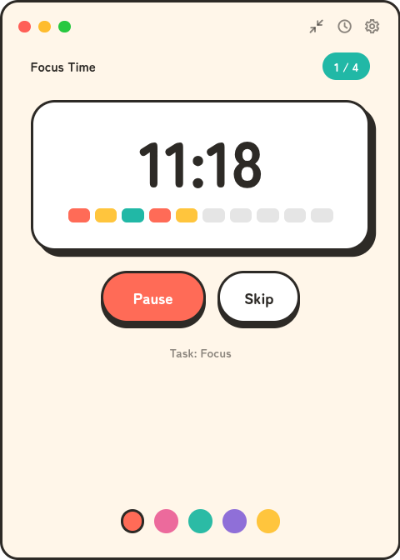
kizami follows the classic pomodoro rhythm:
- Focus — 25 minutes of concentrated work.
- Short break — 5 minutes to breathe.
- After four focus sessions (adjustable in Settings), a long break — 15 minutes.
The 1 / 4 badge in the top corner shows where you are in the current set, and the row of blocks under the countdown fills in as the session progresses. All three durations and the number of sessions per set can be changed in Settings.
Running a session
- Start / Pause / Resume — the big button starts the current phase and toggles between pause and resume while it runs.
- Skip — jumps to the next phase immediately: end a break early, or bail out of a focus session that got interrupted.
- Task name — the label under the buttons shows what you're working on; set it in Settings to keep your goal in view.
The timer is wall-clock based: it counts real elapsed time, so hiding the window, switching virtual desktops, or even putting the machine to sleep never makes it drift. If the machine sleeps through the end of a phase, kizami catches up correctly on wake.
Mini mode

Click the shrink button in the popup's title bar to switch to mini mode — a slim, pill-shaped bar with just the countdown, the progress blocks, and start/stop. It takes almost no screen space, so you can keep it in a corner while you work.
- The skip button moves to the next phase, same as in the full popup.
- The expand button returns to the full popup.
- kizami remembers which mode you were in and reopens the same way next time.
Clock mode
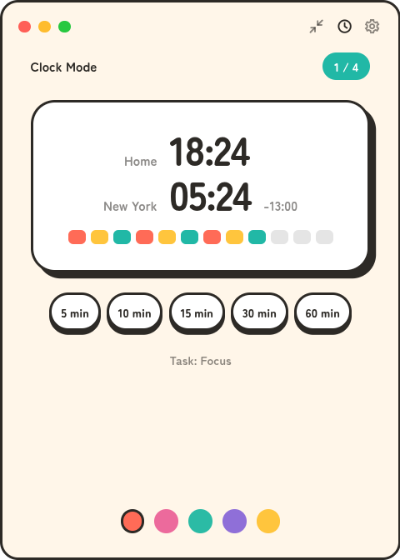
Click the clock button in the popup's title bar to turn the popup into a clock. The layout stays the same — only the readout changes: the header reads Clock Mode, the big number shows the current time of day, and the progress blocks fill as the day goes by — empty at midnight, half full at noon. The theme picker keeps working, the pomodoro timer keeps running in the background and phase notifications still arrive; click the button again to get back to the timer.
- The time is shown in 24-hour notation, as hh:mm or hh:mm:ss — pick the format in Settings.
- Pick a comparison city in Settings and the clock shows two rows: your home time and that city's, with its offset. Scroll over the clock (or focus it and press ↑/↓) to shift both rows hour by hour — a day either way, and one step further wraps back to now — to answer "if we meet at 16:00 my time, what is that for them?". The display snaps back to the real time on its own ten seconds after the last adjustment.
- The buttons under the clock start a preset countdown timer (5, 10, 15, 30, or 60 minutes) — a quick kitchen timer, independent of the pomodoro cycle. A desktop notification fires when time is up; the × button cancels a running timer, and picking another preset simply replaces it.
- Clock mode works in mini mode too: the bar shows the time (both cities, when a comparison city is set), the day progress, the date with the weekday, and the expand button.
- kizami remembers the mode and reopens the same way next time.
The tray icon and quitting
kizami is a tray app: closing the popup does not quit it. The timer keeps running in the background, and the tray icon changes to show whether a session is active.
- Click the tray icon to open (or re-open) the popup next to it.
- Right-click the tray icon for the menu, including Quit — that is how you exit kizami completely.
Notifications
Every phase change fires a desktop notification — time for a break, and time to get back to focus — so the popup can stay closed while you work. Notifications use your OS's native notification system; if you don't see them, check that notifications are allowed for kizami in your system settings.
Settings
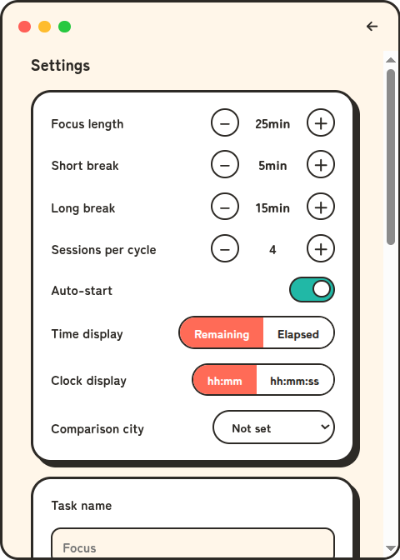
Open Settings with the gear button in the popup's title bar.
| Setting | What it does |
|---|---|
| Focus length / Short break / Long break | The duration of each phase, in minutes. |
| Sessions per cycle | How many focus sessions to complete before the long break (1–10, default 4). With 1, every break is a long break. |
| Auto-start | Whether the next phase begins automatically when one ends. |
| Time display | Whether the timer shows the time left in the phase, counting down (the default), or the time spent in it, counting up. Phase lengths and when they end are the same either way. |
| Clock display | The time format used by clock mode: hh:mm (the default) or hh:mm:ss. |
| Comparison city | A second city whose time clock mode shows under your own, from a list of major cities. "Not set" (the default) keeps the clock to a single row. |
| Task name | A short label for what you're working on, shown under the timer. |
| Language | 日本語 or English. kizami follows your OS language on first launch and can be switched here any time. |
| Icon | Switches the tray icon between the 刻 logo and the original tomato. |
| Update | Shows the current version and checks GitHub for a newer release — see Updates. |
| About | Shows the app and runtime versions, license, source, and bundled OSS notices. |
Updates
kizami can check GitHub Releases for a newer version and lets you know when one is available — it never downloads or installs anything by itself. The automatic check on startup can be turned off in Settings, where you can still check manually with Check now. If you installed from the AUR, update through your AUR helper instead.
Where your data lives
Everything kizami stores lives in two small JSON files in the app-data folder (location
shown for Linux; on Windows it's under %APPDATA%, on macOS under
~/Library/Application Support):
-
~/.config/kizami/settings.json— durations, sessions per cycle, auto-start, time display, clock mode and its format, the comparison city, task name, language, theme, and window mode. -
~/.config/kizami/update.json— update-check state: whether the automatic check is on, the version you chose to skip, and when the last check ran.
Privacy: there is no telemetry, no analytics, and no account. The only network request kizami ever makes is the optional update check described above — see the privacy policy.
FAQ
I closed the window — is my session gone?
No. Closing the popup only hides it; the timer keeps running in the background. Click the tray icon to bring it back, and notifications still fire at every phase change.
Does sleep or suspend break the timer?
No. The engine counts real elapsed wall-clock time, so after a sleep the timer is exactly where it should be. If a phase ended while the machine was asleep, kizami moves on correctly when it wakes.
Can I change the 25/5/15 minute durations?
Yes — all three are adjustable in Settings, along with how many focus sessions come before the long break.
I don't see a tray icon.
On some Linux desktops (notably GNOME) tray icons require an extension such as AppIndicator and KStatusNotifierItem Support. Install and enable it, then restart kizami.
How do I uninstall cleanly?
Uninstall the app as usual for your OS, then delete the settings folder (see Where your data lives) if you want to remove every trace.